Imagine diving into the vast battlegrounds of PUBG Mobile, feeling the adrenaline rush as you gear up for a fight, only to realize your virtual aiming needs a serious upgrade. Why not elevate your gaming experience by using an Xbox controller? After all, thumb-aching tapping on a touchscreen might feel like an Olympic sport, but let’s face it: controllers are where the real action’s at. Whether you want to dominate your foes or just show off your gameplay skills to your friends, this guide is here to help you seamlessly integrate an Xbox controller into your PUBG Mobile experience. Buckle up.
Understanding PUBG Mobile Controller Support
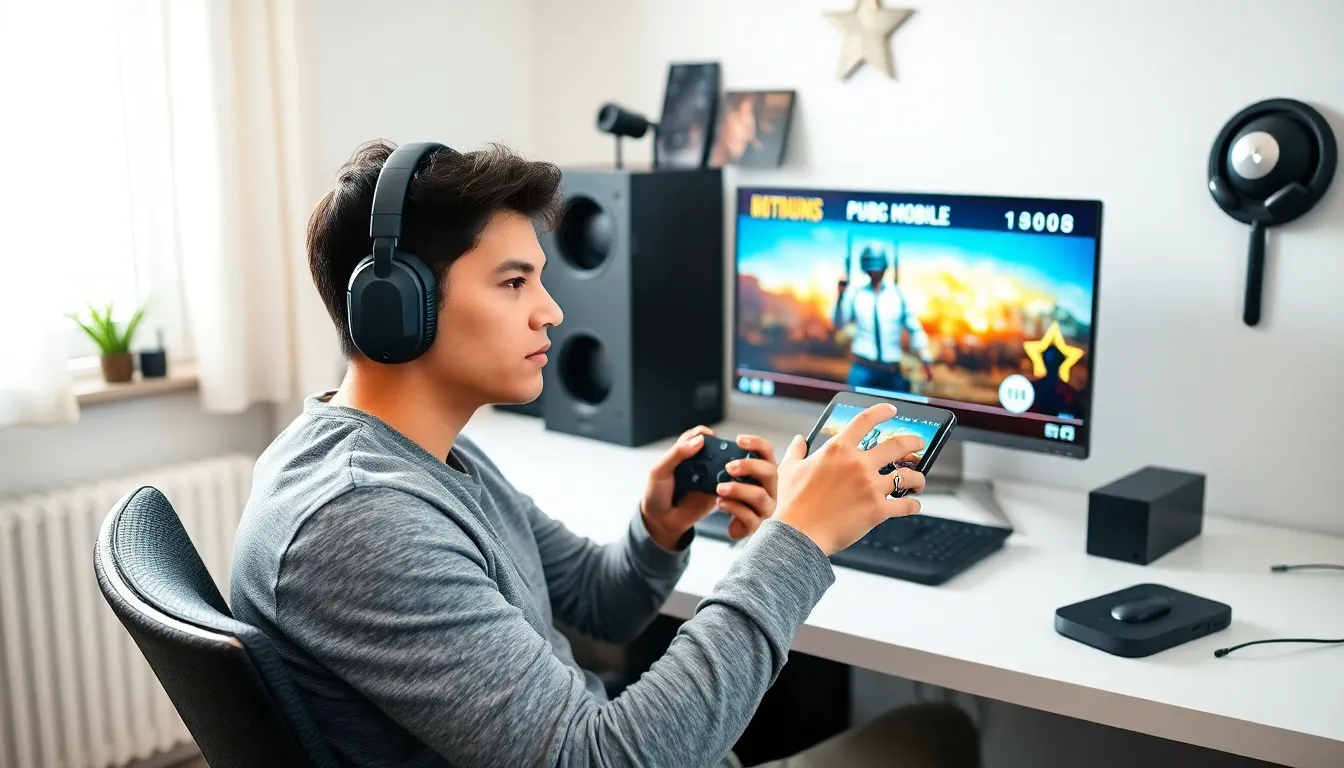
Many players wonder if PUBG Mobile supports controllers like the Xbox. The great news? It does. PUBG Mobile has made strides in accommodating various input methods, including game consoles. This means players can tap into their skills and precision with a controller, giving them an edge in those heart-pounding moments.
Also, while controller support is integrated into the mobile game, the level of customization can vary depending on the device and OS you’re using. A little flexibility in settings may enhance the experience, so don’t hesitate to explore options before jumping into that match.
Understanding these basics will set you up for a smoother transition from touchscreen gameplay to controller use.
Setting Up Your Xbox Controller
Getting your Xbox controller ready for PUBG Mobile might sound tricky, but worry not, it’s quite straightforward. Here’s how to connect your controller to mobile devices.
Connecting Your Controller To Mobile Devices
First things first, ensure your Xbox controller is compatible with your device. If you’ve got a newer version, the setup should be a breeze.
- Bluetooth Connection: Open your device’s Bluetooth settings. Turn on the controller, then press and hold the Connect button. This button is usually located at the top of the controller, near the triggers.
- Pairing: Your controller should appear on the list of available devices. Select it to pair
- Confirmation: Once connected, you’ll see a confirmation message, signaling that you’re ready to roll.
- Open PUBG Mobile: Launch the game and enjoy the seamless transition to controller gameplay.
Have an older Xbox controller? You might need a USB OTG (On-The-Go) cable to connect it directly to your mobile device instead. Make sure to check the controller’s compatibility with your device to avoid last-minute confusion.
Adjusting Controller Settings In PUBG Mobile
Now that your Xbox controller is connected, let’s get familiar with adjusting those controller settings in PUBG Mobile. Finding that sweet spot can significantly improve your gameplay.
Customizing Controls For Improved Gameplay
- Access Settings: Launch PUBG Mobile and tap on the ‘Settings’ option from the main menu.
- Go To Controls: Head to the ‘Controls’ tab.
- Controller Settings: You’ll see customization options that allow you to adjust sensitivity, button layout, and more.
- Test Different Configurations: Play around with the settings until you find what feels comfortable. Some players prefer a higher sensitivity for quicker turns, while others might opt for a lower sensitivity for more precise aim.
Experimentation is key here: ensure that your layout suits your play style and gives you that competitive edge.
Tips For Using An Xbox Controller Effectively
Once you’re comfortable with the basic setup, it’s time to dig into tips for mastering the Xbox controller.
- Familiarize The Layout: Take time to learn the button placements and functions. Knowing which button to hit during a heated battle can save your life.
- Practice: Just like any skill, practice makes perfect. Spend some time in arcade matches to get accustomed to controller gameplay without the pressure of ranking.
- Use Aim Assist: PUBG Mobile includes aim assist for controller users. Don’t be shy about taking advantage of it: it scales up your chances to land those crucial headshots.
- Stay Dynamic: While keeping control is essential, remain adaptable. Sometimes switching up your strategy mid-game can lead to unexpected wins.
Common Issues And Troubleshooting
Like any technology, using an Xbox controller on PUBG Mobile may come with a few hiccups. Here are some common issues players might face and how to troubleshoot them.
- Input Lag: If you notice a delay between your inputs and on-screen actions, check if your Bluetooth connection is stable. Consider reducing the distance between your controller and device.
- Disconnected Controller: Regularly ensure your controller is charged and still paired with your device. If you face this frequently, re-pair it to resolve any glitches.
- Buttons Not Responding: If certain buttons don’t seem to work, double-check your in-game controller settings. Sometimes resetting the layout fixes unresponsive controls.
- Performance Issues: If playing with a controller causes FPS drops or lag, try closing background applications on your mobile device: you might need to restart the game to clear minor glitches.