
When it comes to gaming, a finely tuned Xbox One controller can make all the difference between epic victories and frustrating defeats. Imagine your character running in circles while you’re desperately trying to aim—it’s like trying to dance with two left feet! Calibration might sound like a techy term reserved for engineers, but fear not. With just a few simple steps, he can have his controller performing like a well-oiled machine.
Understanding Xbox One Controller Calibration
Calibrating an Xbox One controller improves accuracy and responsiveness in gaming. A well-calibrated controller ensures a seamless experience, free from frustrating input errors.
What Is Controller Calibration?
Controller calibration refers to the process of aligning the controller’s inputs with the gaming system’s responses. It involves adjusting the joystick sensitivity and button functionality to match player expectations. Calibration fine-tunes settings to enhance control over game characters and actions. Over time, drift may occur, leading to unintended movements. In such cases, recalibration restores precision, keeping gameplay smooth and enjoyable.
Why Calibration Is Important?
Calibration plays a crucial role in maintaining optimal controller performance. Proper calibration reduces issues like stick drift and unresponsive buttons that disrupt gaming experiences. Enhanced accuracy improves character control, allowing for better strategic movements. Players can respond more effectively, especially in high-pressure situations. Regularly calibrating the controller ensures it operates at peak efficiency, making gameplay more enjoyable. A fully functional controller can mean the difference between winning and losing during competitive matches.
Preparing for Calibration
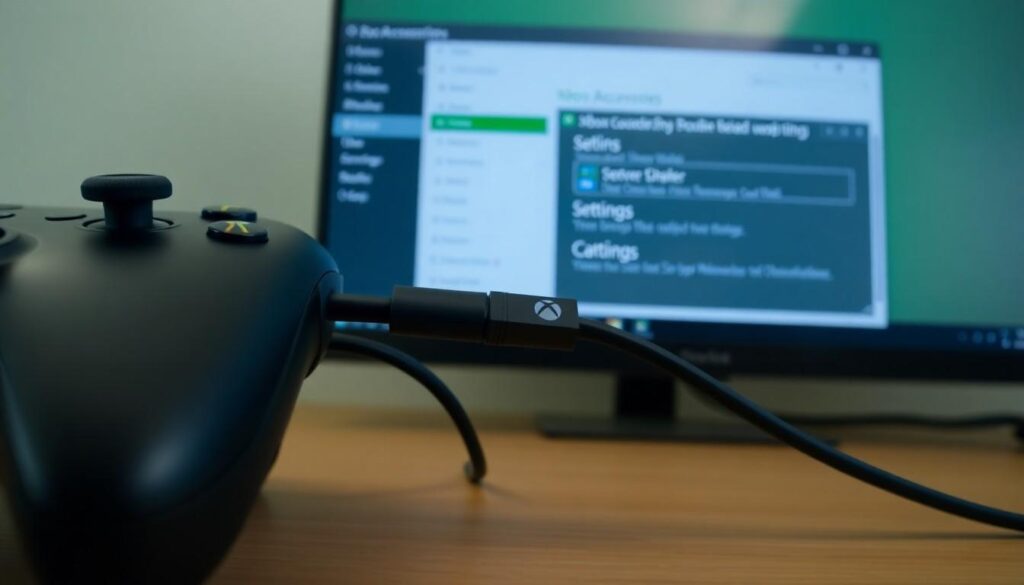
Proper preparation ensures a successful calibration of the Xbox One controller. Gathering necessary tools and software is vital, along with ensuring the device is updated for optimal performance.
Required Tools and Software
A Windows PC serves as the primary platform for calibration. For this process, you’ll need a USB cable to connect the controller to the PC. Microsoft’s Game Bar or the Xbox Accessories app provides essential software for calibrating the controller. Game Bar simplifies access to controller settings, while the Xbox Accessories app offers advanced configurations. Downloading the latest version of the app is important for accessing all features.
Checking for Updates
Checking for updates guarantees the controller operates at its best. Begin by connecting the Xbox One controller to the PC. Next, open the Xbox Accessories app to see if an update is available. If prompted, follow the instructions to install the latest firmware. Keeping the controller firmware current protects against bugs and performance issues, enhancing responsiveness and accuracy during gameplay. Regularly checking for updates supports a seamless gaming experience.
Step-by-Step Guide on How to Calibrate Xbox One Controller
Calibrating an Xbox One controller is simple and ensures optimal performance during gameplay. Follow these steps for effective calibration.
Calibrating via Windows Settings
Start by connecting the Xbox One controller to the Windows PC using a USB cable. Open the Control Panel and navigate to “Devices and Printers.” Locate the Xbox controller icon, right-click it, and select “Game controller settings.” Click “Properties,” and on the next screen, select the “Settings” tab. This tab allows adjustments to the controller’s calibration settings. Click “Calibrate” and follow the on-screen prompts to complete the process. Test the controller after calibration to confirm that all inputs function smoothly.
Calibrating via Xbox Accessories App
Install the Xbox Accessories app from the Microsoft Store if it’s not already on the device. Connect the Xbox One controller using a USB cable. Open the Xbox Accessories app, and select the controller you want to configure. Choose the “Configure” option, which provides customization settings. Adjust the joystick sensitivity, remap buttons, and save the profile once complete. Test configurations within the app to ensure they meet gaming preferences, enhancing responsiveness and control.
Troubleshooting Calibration Issues
Calibration issues can arise despite following the calibration steps accurately. Identifying and resolving these problems ensures optimal controller performance during gameplay.
Common Problems and Solutions
Stick drift can occur when the joystick moves without input. To resolve this, users should recalibrate the controller using the Xbox Accessories app. Unresponsive buttons can also frustrate players; they typically require a firmware update, which can be checked through the same app. Input lag may indicate a connectivity issue; switching to a wired connection can often enhance responsiveness. Lastly, check for software updates regularly to avoid compatibility problems with the controller.
When to Seek Professional Help
Persistent issues can signal the need for professional assistance. If problems such as severe stick drift or repeated unresponsiveness continue after multiple calibrations, contacting Xbox support is advisable. Hardware failure can manifest through unusual sounds or physical damage, so expert evaluation becomes essential in these cases. Seeking help from a professional technician can provide a thorough diagnosis and potential repair solutions. Don’t hesitate to reach out if calibration attempts yield no improvement; getting a second opinion ensures proper functionality.
Conclusion
Calibrating an Xbox One controller is essential for any serious gamer looking to enhance their performance. By following the straightforward steps outlined, players can ensure their controller functions optimally, leading to improved accuracy and responsiveness during gameplay. Regular calibration not only helps maintain peak performance but also addresses common issues like stick drift and unresponsive buttons.
Utilizing tools like the Xbox Accessories app or Windows Settings makes the process accessible and efficient. Keeping the controller firmware updated further contributes to a seamless gaming experience. With a well-calibrated controller, gamers can confidently tackle challenges and enjoy their favorite titles with enhanced precision and control.