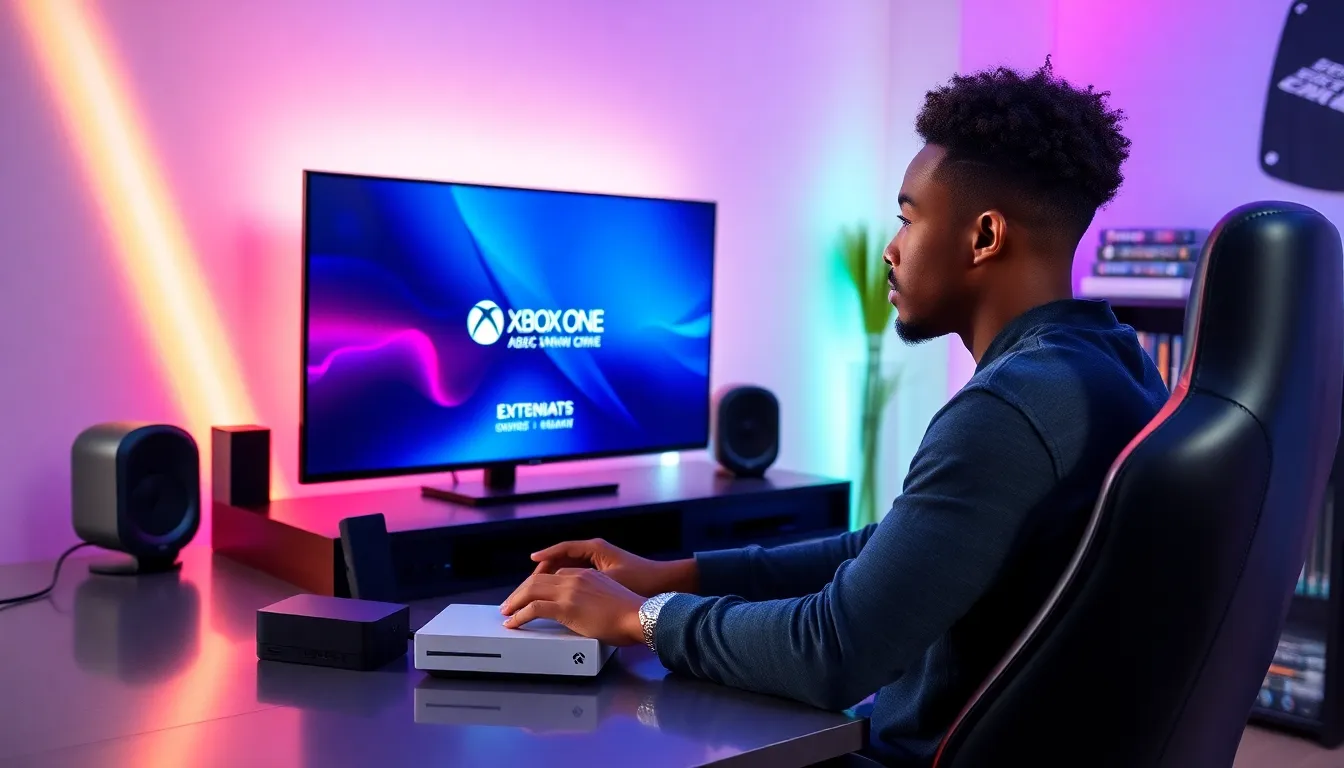
Let’s face it: nothing torches the excitement of gaming like running out of space right before a big download. Picture this: you’re prepped for the latest blockbuster game, only to be met with the dreaded ‘Not Enough Storage’ message. With an Xbox One S, this tragedy can be a thing of the past. Enter the external hard drive, the ultimate lifesaver for anyone serious about keeping their game library expansive and ready to rock. In this text, we’ll dive deep into why every Xbox One S user should consider adding an external hard drive to their setup. Spoiler alert: it’s a game changer.
Why You Need an External Hard Drive for Xbox One S
Benefits of Expanding Storage
When it comes to gaming, space is king. An external hard drive allows players to expand their storage significantly, doubling or even tripling the amount of space for games and content. It’s like moving from a cozy studio apartment to a luxurious mansion where every game can have its own room.
Enhanced Game Library and Performance
Imagine having your favorite titles, indie games, and all that downloadable content at your fingertips without having to delete anything. With an external hard drive, loading times can also become more manageable. Games can run smoother, letting players focus on epic quests instead of pondering which game to delete next.
Avoiding Storage Limitations
The Xbox One S comes with built-in storage that can fill up faster than one might think. With major game updates, patches, and optional DLC, it’s easy to find oneself hitting that storage ceiling. Avoiding these limitations can save frustration down the line.
Choosing the Right External Hard Drive
Factors to Consider When Selecting a Drive
When picking out an external hard drive, consider speed, capacity, and compatibility. Whether it’s SSDs for speed or traditional HDDs for affordability, the choice can shape the future of gameplay experiences. One must also check if the drive supports USB 3.0 or higher to ensure speedy data transfer.
Types of External Hard Drives
There are essentially three types: HDDs, SSDs, and hybrid drives. HDDs are slower but more cost-effective, making them perfect for budget-conscious gamers. SSDs come with lightning-fast speeds but can be pricier. Hybrids attempt to strike a balance, offering both speed and cost-effectiveness.
Top Recommended External Hard Drives for Xbox One S
Features to Look for in Compatible Drives
A great external drive should offer high storage capacity, solid read and write speeds, and reliability. It needs to be simple to connect and should not require additional power sources, making gaming seamless and hassle-free.
Comparison of Popular Models
Some top models to consider include:
- Seagate Game Drive for Xbox: Specifically designed for Xbox, it offers up to 8TB of storage.
- Western Digital My Passport: A versatile option with multiple capacities and a solid reputation.
- Samsung T5 SSD: A bit pricier, it’s known for phenomenal speeds and durability.
How to Set Up an External Hard Drive with Xbox One S
Connecting the Drive to Your Console
Setting up the external hard drive is a breeze. Simply plug the drive into one of the USB ports on the console. The Xbox One S automatically detects it, and you’ll be prompted to format it for gaming.
Formatting and Configuring the Drive
Follow on-screen prompts, select format, and voilà. You’re ready to transfer games. Just ensure to back up any important files beforehand, as formatting wipes all data on the drive.
Transferring Games and Data
Moving Games Between Internal and External Drives
Transferring games to the external hard drive is a simple process. Navigate to the settings, select storage, and you can move games quickly. This flexibility allows you to manage game storage like a pro.
Managing Storage Space Effectively
Regularly check how much space each game occupies. Some games can be transient, requiring a download of additional content or updates. Deleting unused apps or games may free up valuable space.
Troubleshooting Common Issues
Resolving Connectivity Problems
If the console does not recognize the drive, confirm that it’s plugged in correctly. Try different USB ports or restart the console. If issues persist, it might be worth testing the drive on a computer to ensure functionality.
Formatting Errors and Solutions
Should formatting hiccups arise, revisit the settings menu. Disconnect the drive and plug it back in before attempting to format again. Sometimes, a fresh start clears up background processes preventing successful formatting.